Projects
Learn about Projects and how to use them.
A Project is a collection of settings that are applied to all API requests made when using its credentials.
They are intended to be used to separate different use cases, such as if you're using Urlbox on several different domains, or different environments, such as development and production.
Each project has its own unique publishable and secret key, which are used to authenticate requests to the API.
When you first sign up, Urlbox will generate a project and name it default.
You can create as many Projects as you need.
You can use projects to rotate your API keys if necessary.
Creating a new Project
The current flow is:
-
Open
Settingsand go to theProjectspage.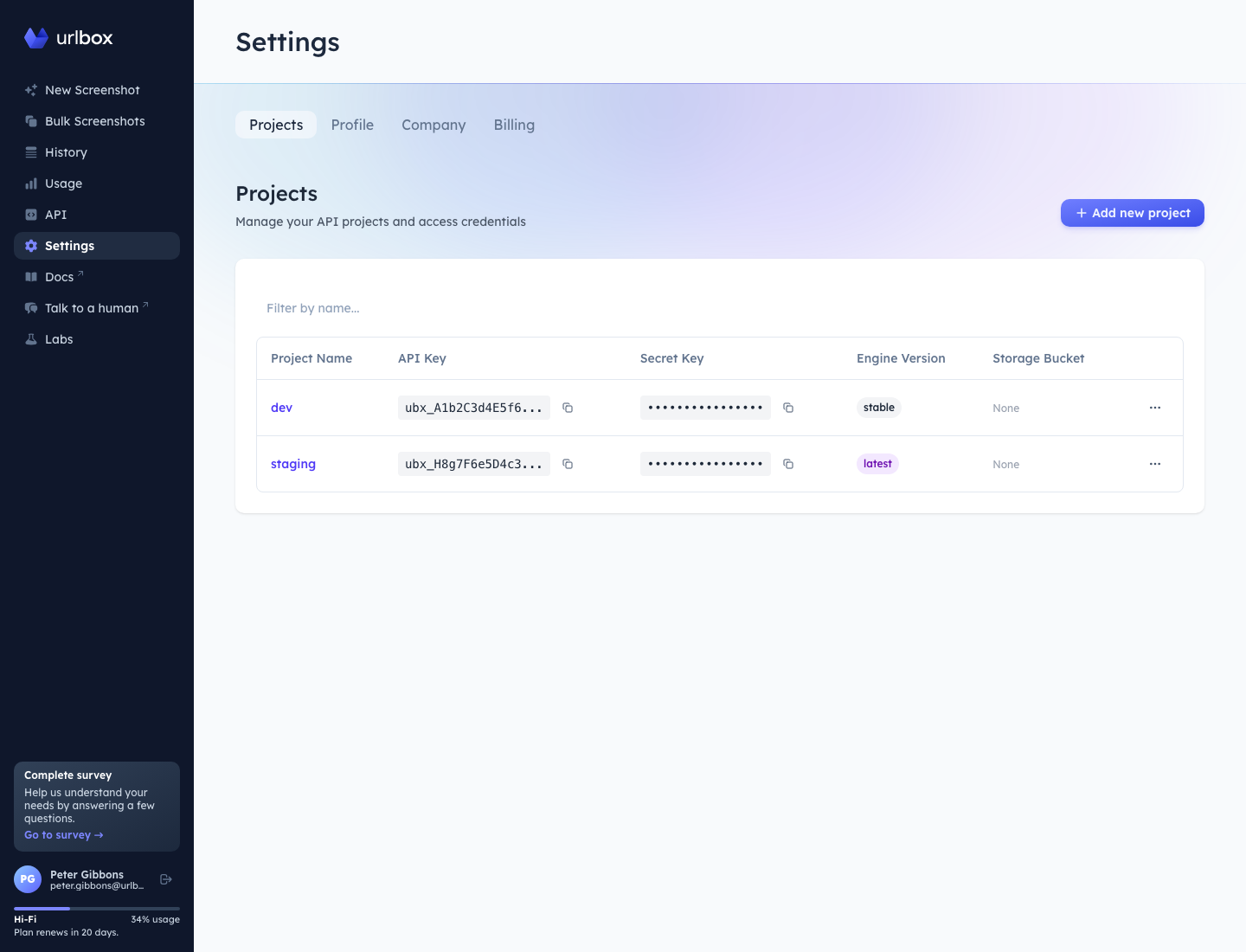
-
Click
Add new project, then enter a name for the new project.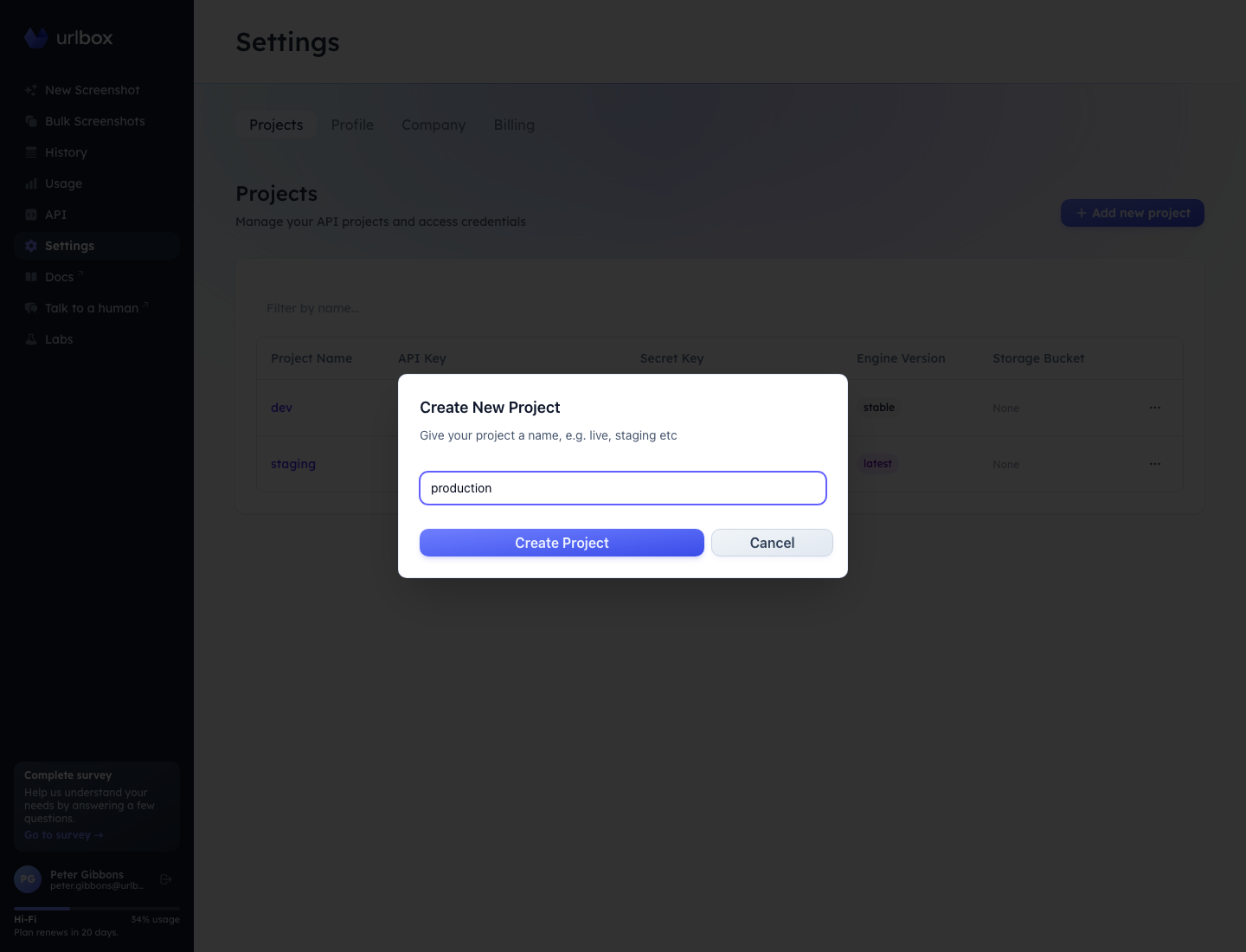
-
After creation, Urlbox opens the new project's settings so you can copy credentials and configure project-specific options.
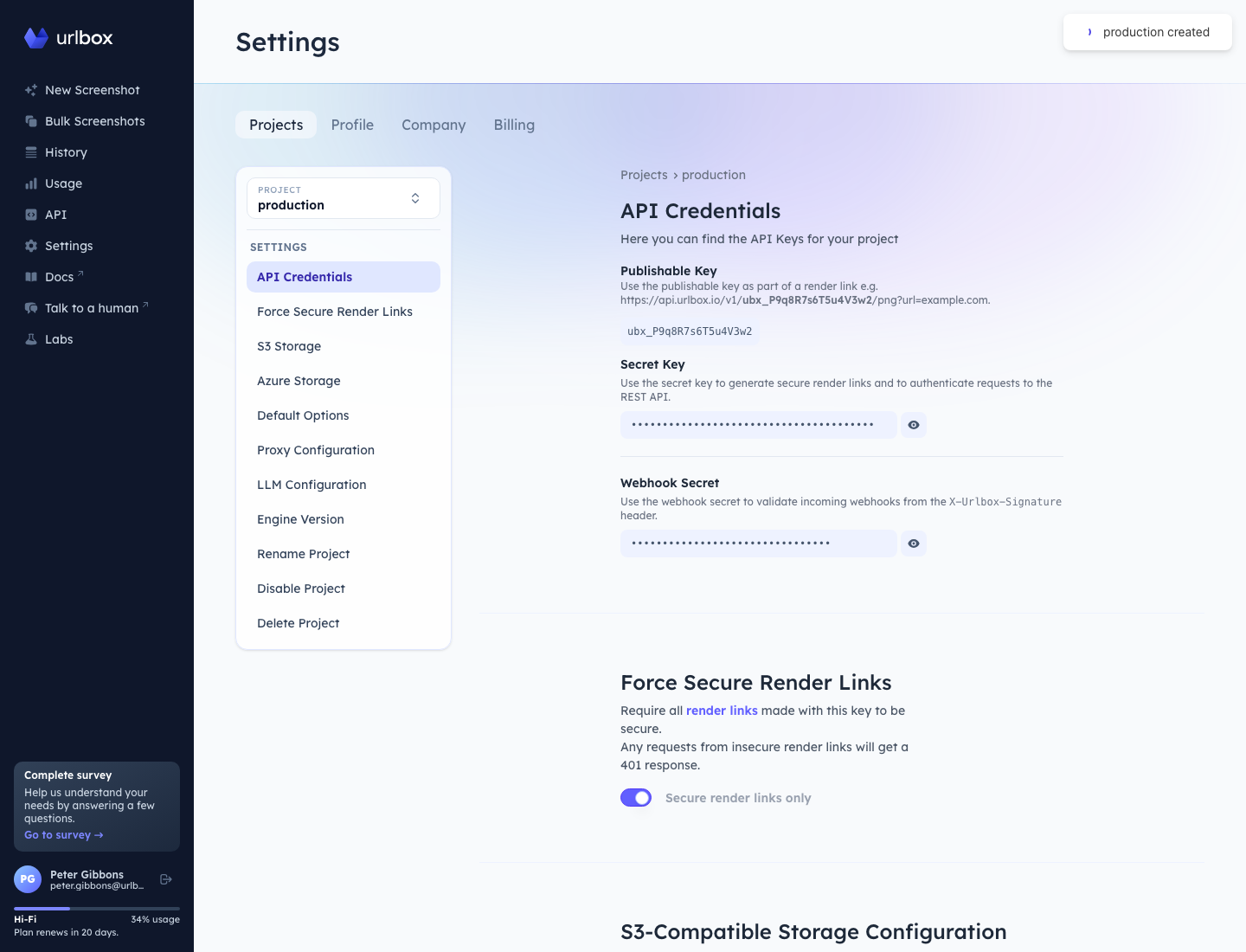
Project settings
From within the dashboard settings menu, you can access the settings for each individual project.
API Credentials
Each project has a publishable key, a secret key, and a webhook secret.
Use the publishable key in render links, the secret key for authenticated API requests, and the webhook secret to verify webhook signatures.
Force Secure Render Links
This setting will force all API requests to use secure render links, and will reject any requests from render links without an auth token with a 401 status code.
Read more in the render links documentation.
S3-Compatible Storage Configuration
Each project can store one S3-compatible storage configuration. When you enable use_s3 on a request, Urlbox will upload the render to that project's configured bucket instead of using the default response flow.
See the S3 guide and the storage setup docs such as Configure S3 for more detail.
Azure Blob Storage Configuration
You can also configure Azure Blob Storage at the project level. This is useful if you want renders for one project to go directly to an Azure container you control.
The relevant render options are use_azure and azure_path — see the storage options reference.
Default Project Options
This section lets you store default render options on the project itself. Those defaults are applied to every request made with the project's credentials, and any request-specific options will override them.
This is especially useful for sensitive settings you do not want exposed in public render links, such as headers, cookies, authorization, or login/session values. See the main options reference and the guide on rendering behind login.
Proxy Configuration
You can save a project-level proxy here, then enable it per request with use_proxy. This keeps the proxy URL out of public render links and lets multiple requests share the same configuration.
See the proxy guide and the proxy / use_proxy option docs.
LLM Configuration
This section stores project-level LLM credentials and defaults for screenshot analysis and extraction workflows. Once configured, you can turn it on in requests with use_llm and related LLM options.
See the LLM options reference for the supported providers and request parameters.
Engine Version
You can choose which rendering engine version this project should use by default. This is useful when you want one project pinned to a more conservative version while testing newer behavior in another.
See engine_version for the request-level equivalent.
Rename Project
You can give each project a name so that it is easier to identify in the dashboard.
Project Status
It is possible to disable a project temporarily, which will reject all API requests made with the keys for that project until you enable it again.
This can be useful if you suspect that your account is being used by an unauthorized user, your credentials have been leaked, or a misconfiguration is causing problems.
Delete Project
A project can be deleted if it is not used any longer. All API requests using the projects credentials will fail once a project is deleted. There is no way to undo this action.
Using a Project
with render links
To use a project with render links insert the publishable key of the project into the render link, and use the secret key to generate the HMAC-SHA256 token.
with REST API
To use a project with the REST API, pass the secret key as the Bearer token in the Authorization request header.
with webhooks
When using a webhook_url in your request, the project's webhook secret can be used to verify the webhook request is coming from Urlbox.