
If you take automated screenshots of your own Shopify store, you may have noticed them coming back wrong at some point this year, either as a page saying you've been rate limited or as a "verify you are human" page. Shopify has since given store owners a way to tell it that the traffic is yours. It's called a crawler signature, you create it in your Shopify admin, and Urlbox will send it along with every request. I set one up on a test store to see how it works, and this is what you need to do.
Why your own store is blocking you
In May 2026 Shopify changed how it treats bots and agents. Any automated traffic to a storefront that doesn't identify itself now gets the strictest rate limits, and some stores go a step further and challenge anything that looks like a crawler. Search engines are recognised and let through. Everything else, which includes whatever you use to screenshot your own store, is treated as an anonymous bot until it proves otherwise.
In practice the block looks like one of two things. Shopify's rate limit answers with a 429 status and a plain page whose only content is the text local_rate_limited. A stricter store answers with a 403 and a Cloudflare page asking you to verify you're human. In both cases the page itself loads without any trouble, so the screenshot looks like a finished render until somebody actually opens it.
Create a crawler signature in Shopify
Shopify's answer to this is Web Bot Auth, which is their implementation of HTTP message signatures. You generate a signature in your admin and include it as headers on every request your tool makes. Shopify checks the signature at its edge and gives that traffic the more lenient limits.
To create one:
- In your Shopify admin, go to Online Store > Preferences.
- Scroll to the Crawler access section at the bottom of the page and click Create signature.
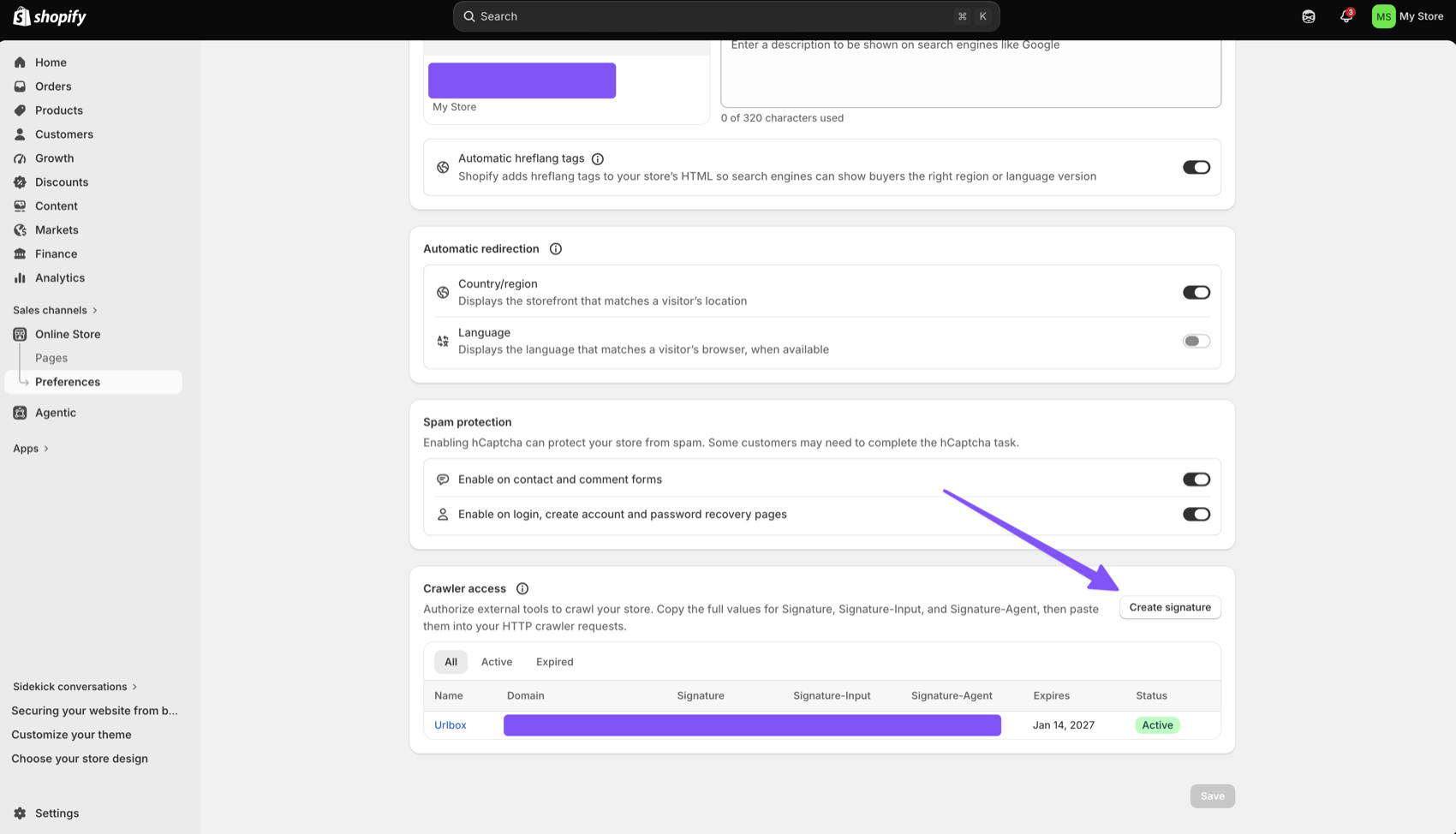
- Give it a name you'll recognise later, such as "Urlbox screenshots".
- Pick the domain the signature is for. It has to be a domain that's connected to your store.
- Pick an expiry period. The longest you can have is three months.
- Click Create, then click Copy next to the Signature-Input and Signature values.
A few things worth knowing about the signature before you use it:
- It only covers your store's hostname and the
Signature-Agentheader, which is why Shopify can hand you a fixed value that works for every request to that domain until it expires, rather than something you'd have to work out per request. - It's tied to one domain. If your store answers on more than one, you need a signature for each.
- It expires on its own and can't be renewed. When it does, you create a new one and update your requests.
- It doesn't get you into Shopify Checkout. Checkout has its own protection and signatures don't cover it.
Pass the signature to Urlbox
Each render request needs three headers:
| Header | Value |
|---|---|
Signature-Input | The Signature-Input value you copied |
Signature | The Signature value you copied |
Signature-Agent | "https://shopify.com", including the quotes |
Urlbox sends custom headers with the header option. It takes a Name=Value string and you can repeat it, so the three headers go in as three entries in the body of your render request:
{
    "url": "https://your-store.com",
    "full_page": true,
    "fail_on_4xx": true,
    "header": [
        "Signature-Input=<your Signature-Input value>",
        "Signature=<your Signature value>",
        "Signature-Agent=\"https://shopify.com\""
    ]
}
Make a block fail rather than succeed
The fail_on_4xx in the example above is worth leaving on. When the store returns an error status, the render fails with a message telling you so, instead of handing you a screenshot of the error page as if nothing happened. If you want to be more specific about it, fail_on takes an exact list of codes, for example "fail_on": [403, 429].
A crawler signature can only be created in a store's own admin, so this only helps with stores you own.