Configuring Azure Blob Storage
Save your screenshots, PDFs and other renders to an Azure Blob Storage container from Urlbox
This guide walks through configuring Azure Blob Storage so that Urlbox stores screenshots and other renders directly in a blob container you control.
Azure is not S3-compatible. Our other storage integrations (S3, Cloudflare R2, Backblaze B2, DigitalOcean Spaces, Google Cloud Storage) all speak the S3 API, so they share one set of credentials and options: an access key and secret, a bucket, and the use_s3 / s3_path render options. Azure Blob Storage is its own protocol, so it takes different credentials (a storage account, a container, and a SAS token instead of a key/secret pair) and different render options (use_azure / azure_path). None of the s3_* options apply to an Azure configuration.
Create a storage account and container
Log in to the Azure Portal and create a storage account if you don't already have one: search for Storage accounts, click Create, pick a subscription, resource group, and a globally unique account name. The defaults (Standard performance, locally-redundant storage) are fine for storing renders.
Once the account is deployed, open it and go to Data storage → Containers, then click + Container. Give it a name like renders and leave the access level at Private for now (see serving renders publicly below).
Generate a SAS token
Urlbox authenticates with a shared access signature (SAS) rather than your account keys, so you never hand us full control of the storage account and you can scope and expire our access.
Generate a container-level token: open your container, then go to Settings → Shared access tokens.
- Permissions:
Write,AddandCreateare what Urlbox needs to upload renders.Readis optional (it lets the connection test read back what it wrote), andDeleteis optional (if granted, the connection test cleans up its test blob; without it the test blob is left behind for you to delete). - Expiry: choose deliberately. When the token expires, renders using
use_azurestart failing until you paste a new token into the dashboard. A long expiry is convenient; a shorter one with rotation is safer.
Click Generate SAS token and URL and copy the Blob SAS token value (the query string beginning sv=...), not the full URL. A leading ? is fine either way - Urlbox strips it.
Add the credentials to Urlbox
In the Urlbox dashboard, open your project's settings and scroll to the Azure Blob Storage Configuration section:
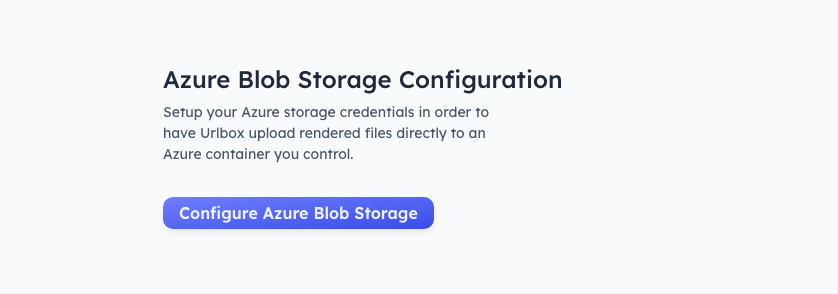
Click Configure Azure Blob Storage and fill in the three fields: the storage account name, the container name, and the SAS token you just generated:
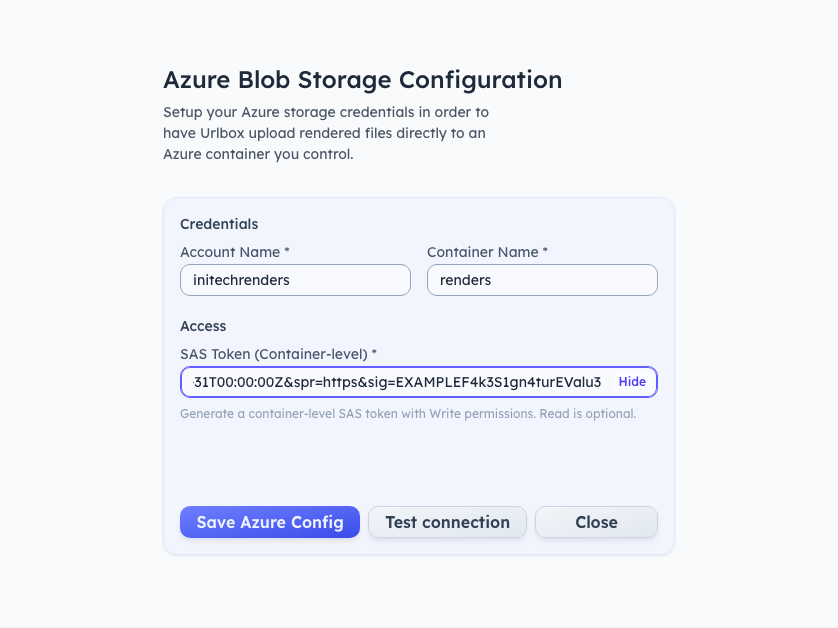
Click Test connection to verify the credentials before saving. Urlbox uploads a small test blob to your container (under delete_me/) to prove it has write access, and deletes it again if the token has Delete permission:
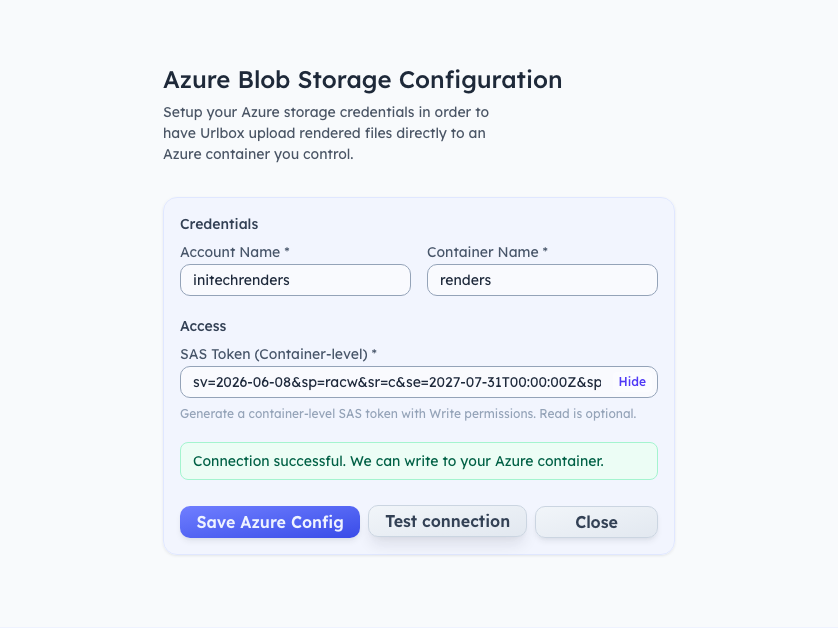
Then click Save Azure Config:
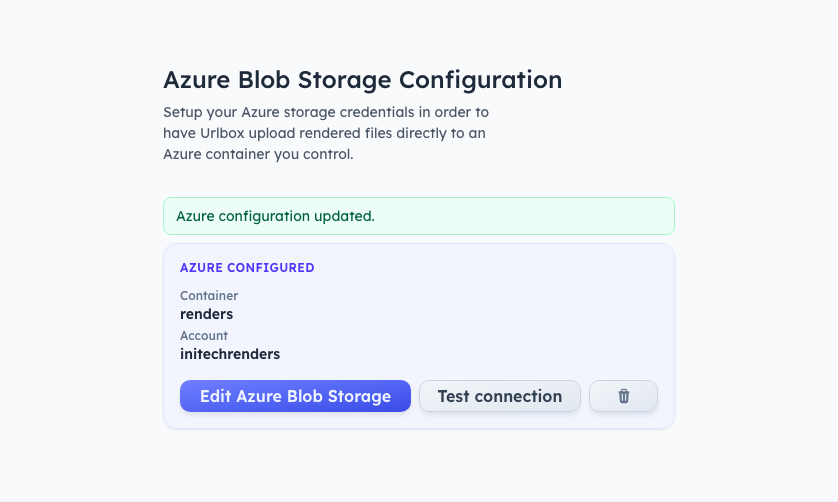
A project uses either an S3-compatible configuration or an Azure configuration, not both at once - the storage slot on a project holds one credential.
Saving renders to your container
Set use_azure=true on a render to store the result in your container:
{
  "url": "https://example.com",
  "use_azure": true
}
By default renders are stored under renders/{year}/{month}/{day}/{renderId} with the file extension appended automatically. Use azure_path to control the path and filename, exactly like s3_path does for S3:
{
  "url": "https://example.com",
  "use_azure": true,
  "azure_path": "screenshots/homepage/2026-07-31"
}
The extension (e.g. .png, .pdf) is added automatically, and no_suffix=true disables that. use_azure and use_s3 are mutually exclusive - a request setting both fails.
The render response and webhook then point at your blob, e.g. https://youraccount.blob.core.windows.net/renders/screenshots/homepage/2026-07-31.png.
Serving renders publicly
A private container (the default) means Urlbox can write renders but the blob URLs won't be publicly readable - fine if your systems fetch them with their own Azure credentials. If you want the returned URLs to be directly usable:
- Anonymous blob access: set the container's access level to Blob (anonymous read access for blobs only). Blob URLs then work for anyone who has them.
- CDN or custom domain: front the container with Azure CDN or Front Door on your own domain, and set the
cdn_hostoption (or the CDN Host field in your project's storage settings) to that hostname. Urlbox then returns URLs on your domain instead of*.blob.core.windows.net.
Differences from the S3-compatible providers
| S3-compatible (S3, R2, B2, Spaces, GCS) | Azure Blob Storage | |
|---|---|---|
| Credentials | Access key + secret | Account name + container + SAS token |
| Location fields | Bucket, region, endpoint | Container only (the account name determines the URL) |
| Enable per render | use_s3=true | use_azure=true |
| Path option | s3_path | azure_path |
| Expiry | Keys live until revoked | SAS tokens expire on the date you set - plan rotation |
If the provider you use speaks the S3 API (most do), follow the S3 guide instead; this page is only for Azure.